A virtual card can make advertising spend easier to separate and reconcile, but it does not guarantee that Google Ads or Meta will accept a payment. Acceptance depends on the ad account’s billing setup, the issuer’s rules, the card’s supported transaction types, and each platform’s payment checks. Use this checklist to compare a card before connecting it to an ad account.
Start with the ad account, not the card offer
First confirm which business and ad account will own the billing profile, what country and currency are configured, and whether the account uses automatic charges, prepayments, or invoicing. Available payment methods and payment settings can depend on the billing country, currency, and account eligibility. For Google Ads, check the methods shown in the account’s own Billing settings and the official Google Ads payment methods guide.
For Meta Ads, open Billing and Payments for the specific ad account in Meta’s own business tools and follow the options shown there. Do not assume that a card usable for a personal Meta Pay purchase is automatically available for advertising billing.
What to check before choosing a virtual card
Supported advertising transactions
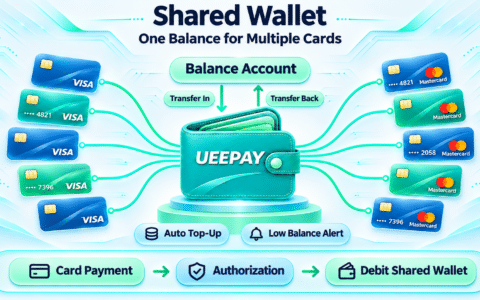
Ask the issuer whether the card supports advertising merchants, online recurring charges, merchant-initiated charges, and any required verification step. Confirm any limits on transaction amount, daily spend, merchant category, or the number of cards that can be issued. A Visa or Mastercard logo alone is not a promise of acceptance by a particular platform.
Available balance and authorization holds
Keep enough available balance for the amount due plus currency conversion and any temporary authorization. Some payment methods may show a pending hold while a card is being verified. Check how the issuer handles pending authorizations, refunds, and reversals before funding a card for a campaign.
Billing details and account ownership
Use accurate cardholder and billing information that matches the issuer’s records. Keep a clear record of which company, ad account, and campaign a card is intended to support. Do not invent an address or change account details to imitate another region; if the payment profile and card details do not match, ask the platform or issuer how to correct them.
Controls for teams and agencies
For multiple clients or campaigns, compare per-card spending limits, real-time transaction alerts, the ability to freeze a card, user permissions, downloadable statements, and card replacement support. Separate cards can make bookkeeping and incident investigation clearer, but they do not replace access controls or the platform’s billing rules.
A safer setup process
1. Check platform eligibility. Review the payment options visible in the target ad account and confirm that the issuer allows the intended advertising use.
2. Review the full cost. Compare card issuance, funding, currency conversion, monthly or inactivity charges, failed-payment fees, refund timing, and any minimum funding amount. A low opening fee by itself does not show the ongoing cost. See our virtual card fee comparison and verify current fees with each provider.
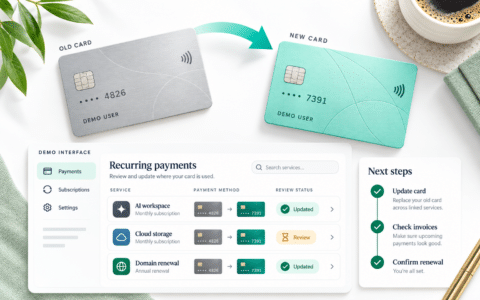
3. Start with a controlled test. Add the card through the platform’s billing interface, complete any verification request, and confirm that the card and account show the expected status before increasing campaign spend. Keep enough balance for the billing setting used by the account.
4. Reconcile after the first charge. Compare the platform’s billing activity with the card statement. Note the charge date, amount, currency, and any pending authorization so the finance team can distinguish a hold from a settled charge.
5. Keep a recovery route. Make sure an authorized account administrator can access billing support and that the business has a backup payment method when the account permits one. Google Ads documents payment settings and backup payment methods in its billing settings guide.
If an advertising payment fails
Stop repeated retries and record the exact message, date, amount, and account. Check the ad platform’s billing page for an unpaid balance, an expired card, a verification request, or an unavailable payment method. Then check the card status, available balance, spending limit, billing details, and issuer notifications. If the issuer declined the charge, contact it before trying again. For Google Ads, follow the official declined payment troubleshooting steps. For Meta Ads, use the support route and payment options presented in the affected ad account.
A successful card payment does not by itself resolve a separate campaign, policy, identity, or account restriction. Check the ad account’s status after billing is corrected. For more card-side checks, see the virtual card risk checklist and our virtual card selection guide.
Frequently asked questions
Will a virtual card prevent an ad account payment hold?
No. A card is only one part of the billing setup. The platform can still require verification or restrict a payment method, and the issuer can still decline a transaction.
Should one card be used for every campaign?
That depends on the business’s accounting and access model. Separate cards or clear spending controls may simplify reconciliation, but first check the platform’s rules and the issuer’s limits.
Can I assume a card will work because it has a Visa or Mastercard logo?
No. The platform and issuer apply their own eligibility and transaction checks. Confirm the intended use with the provider and review the payment options in the ad account.
Official Google Ads resources
Payment methods · Payment settings · Fix a declined card payment
Match the card type to the billing mode
Official-rule check: October 20, 2026. Google’s payment-method guide says prepaid cards are not accepted for automatic payments. It discusses one-time-use cards separately for eligible manual-payment settings. A virtual card number does not tell you whether the product is credit, debit, or prepaid. Confirm both the card type and your account’s available billing options before funding it.
For Meta, keep using the options and notices shown in the specific ad account’s Billing and Payments section. A card accepted by Google or by a personal Meta Pay purchase does not establish advertising eligibility for another account.
Keep a billing compatibility record
- Ad account country, billing currency, and current payment setting.
- Card product, issuer, issuing country, and credit/debit/prepaid classification.
- Written issuer confirmation for recurring advertising charges and applicable limits.
- Fee quote date, funding currency, conversion costs, and refund procedure.
- For a permitted test, the amount, timestamp, merchant billing status, and card transaction status.
Mark unverified fields as awaiting confirmation. This is a documentation checklist, not a report of a new Google Ads or Meta Ads card test.
Prepared by VCCMap. Please credit the source when republishing:https://vccmap.com/en/virtual-card-for-ads-payment-en/